Help centerEditing
Find your way around the design screen
What everything on the design screen does, from the top bar to the panels either side.
Updated 5 November 2026
Open any app from Apps to reach its design screen. Your screens sit side by side on the canvas in the middle.
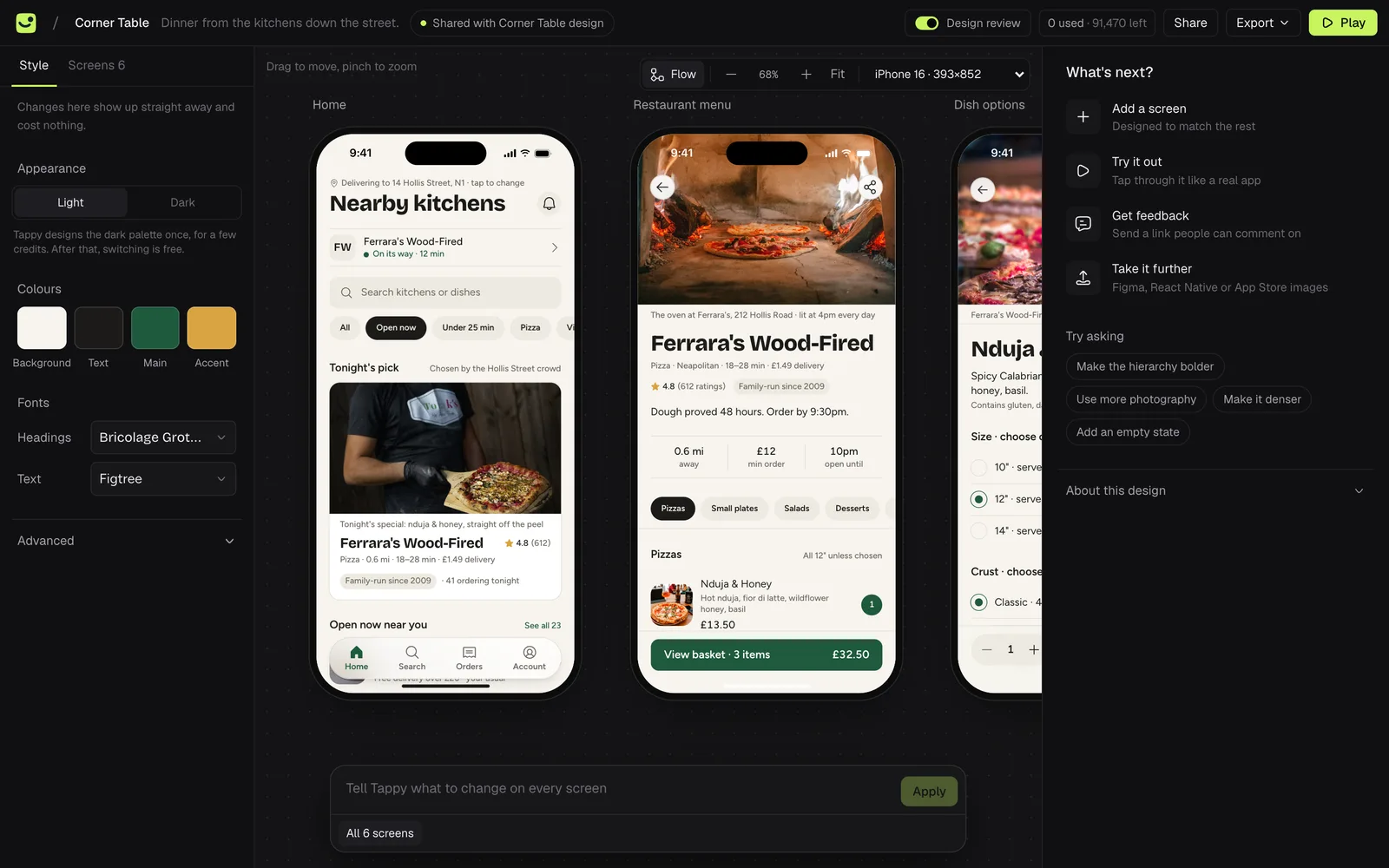
The top bar
- The app's name. Click it to rename the app, and the name inside the screens if you like. Renaming is free.
- Design review. Turns Tappy's screenshot check on new screens on or off for this app.
- Credits. What this app has used, and what you have left.
- Share makes a link people can tap through and comment on. A pink number shows open comments.
- Export takes the design to Figma, code or App Store screenshots.
- Play opens the app full screen so you can tap through it.
The canvas
- Drag to move around, and pinch or ⌘-scroll to zoom. The +, − and Fit buttons do the same.
- Flow draws arrows showing where each tap leads.
- The phone menu previews your app on another phone size.
- Click a phone to select that screen.
The panels
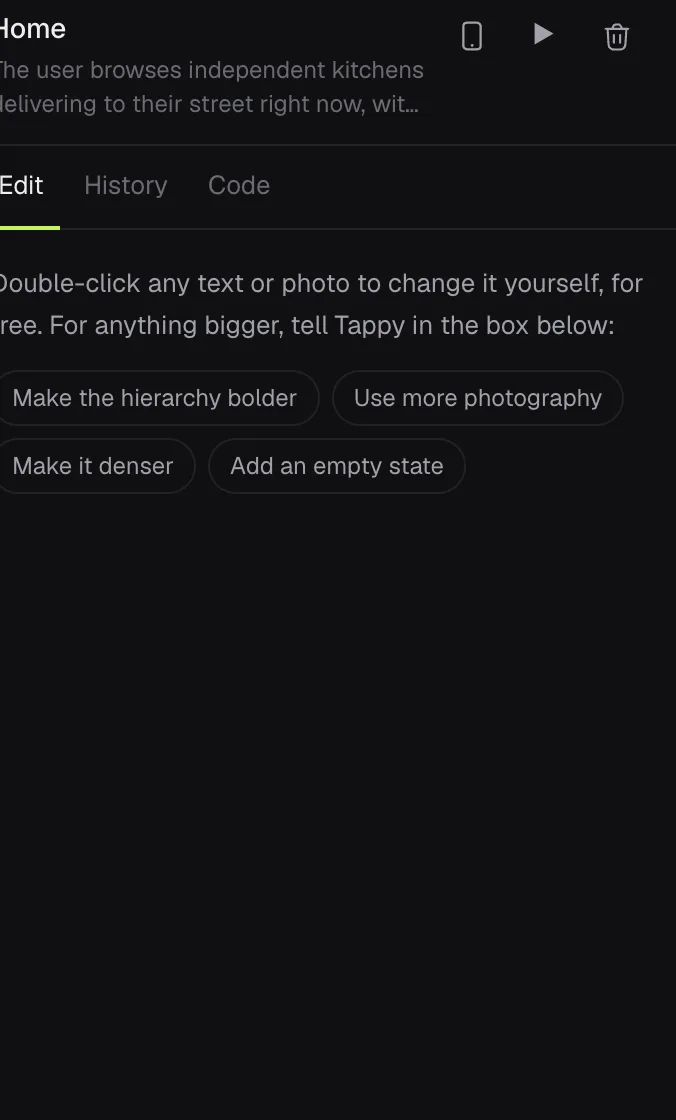
On the left, Style holds your app's colours and fonts, and Screens lists every screen. On the right, with no screen selected, Tappy suggests what to do next. Select a screen to see its tabs: Edit, History and Code.
Keyboard shortcuts
- S selects part of a screen, and Esc stops.
- + and − zoom, and 0 fits every screen.
- Hold Space and drag to move around.
Something not covered here? Use the feedback button in your dashboard, or email hello@usetappy.app.