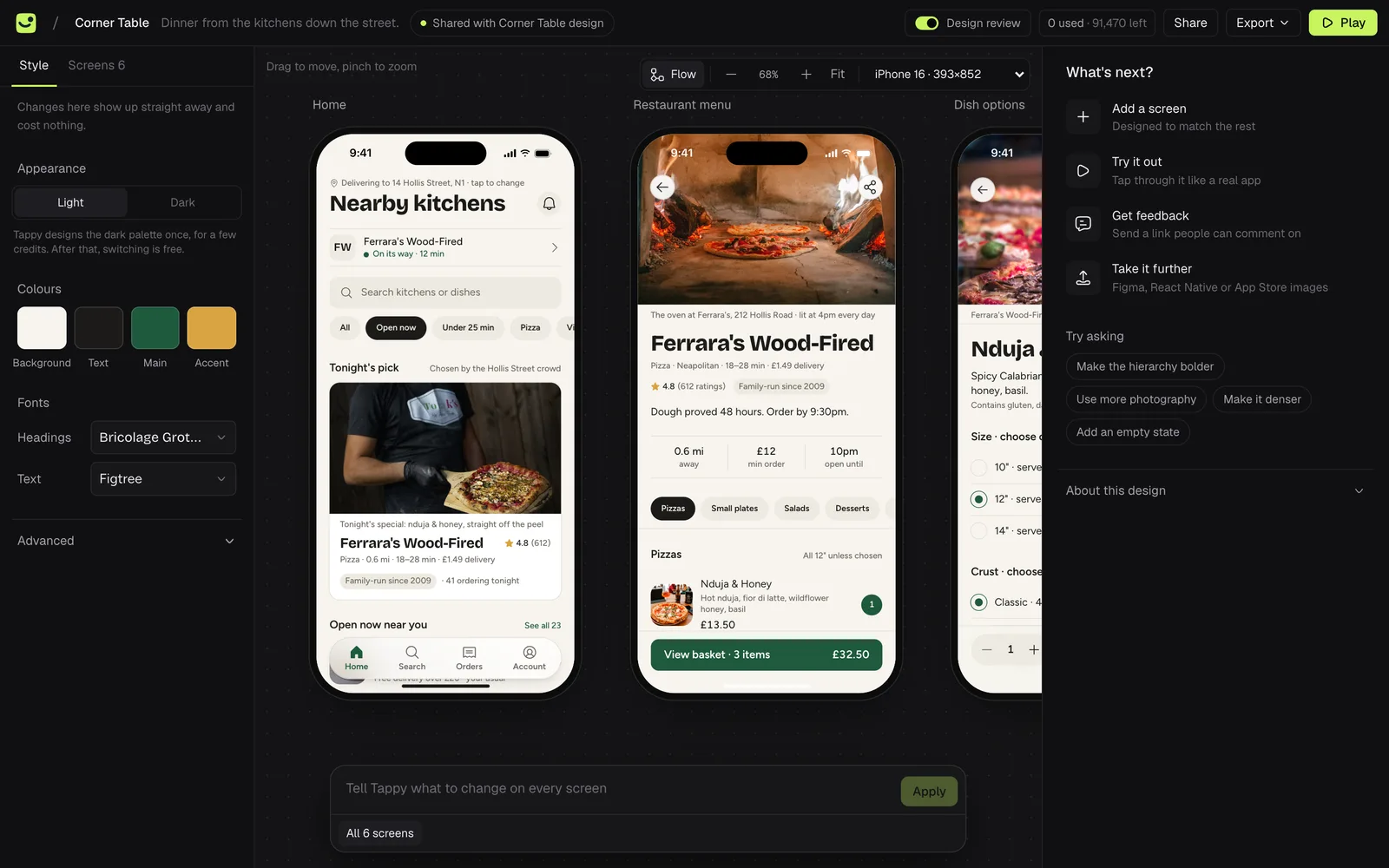
Design your first app
From a description to finished screens, step by step.
Updated 5 November 2026
This takes a few minutes. You need a Tappy account, which you can make with Google, GitHub or your email.
Describe your app
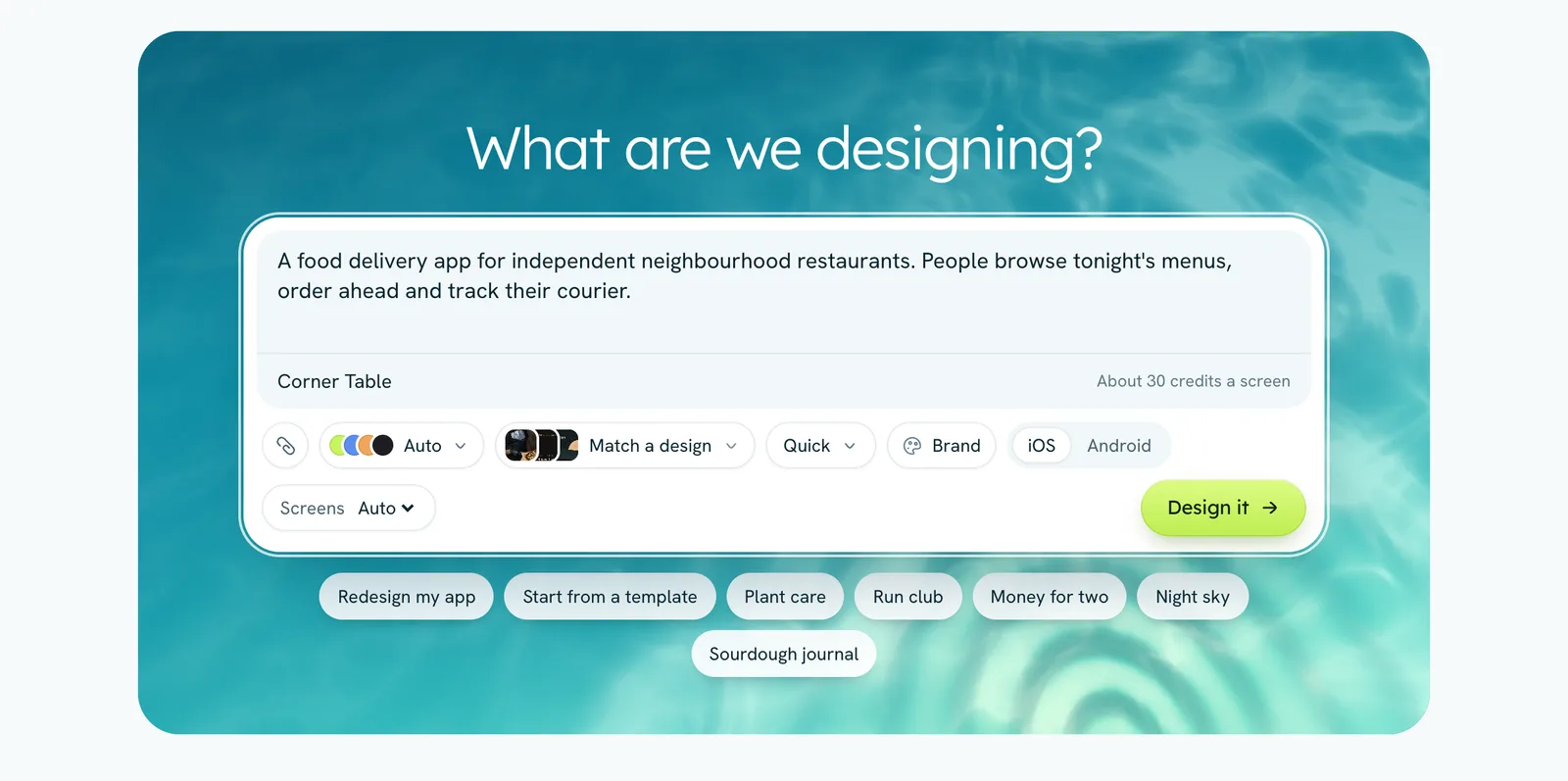
Open Apps and write what the app does and who it's for in the box under What are we designing? Give it a name in App name (optional) if you have one. You can also paste a spec, or attach screenshots or a PDF with the paperclip.
Set the options, or leave them
The row under the box sets the look (Auto picks one for you), the design level, iOS or Android, and how many Screens to design. The estimate in the corner shows roughly how many credits it will use.
Press Design it
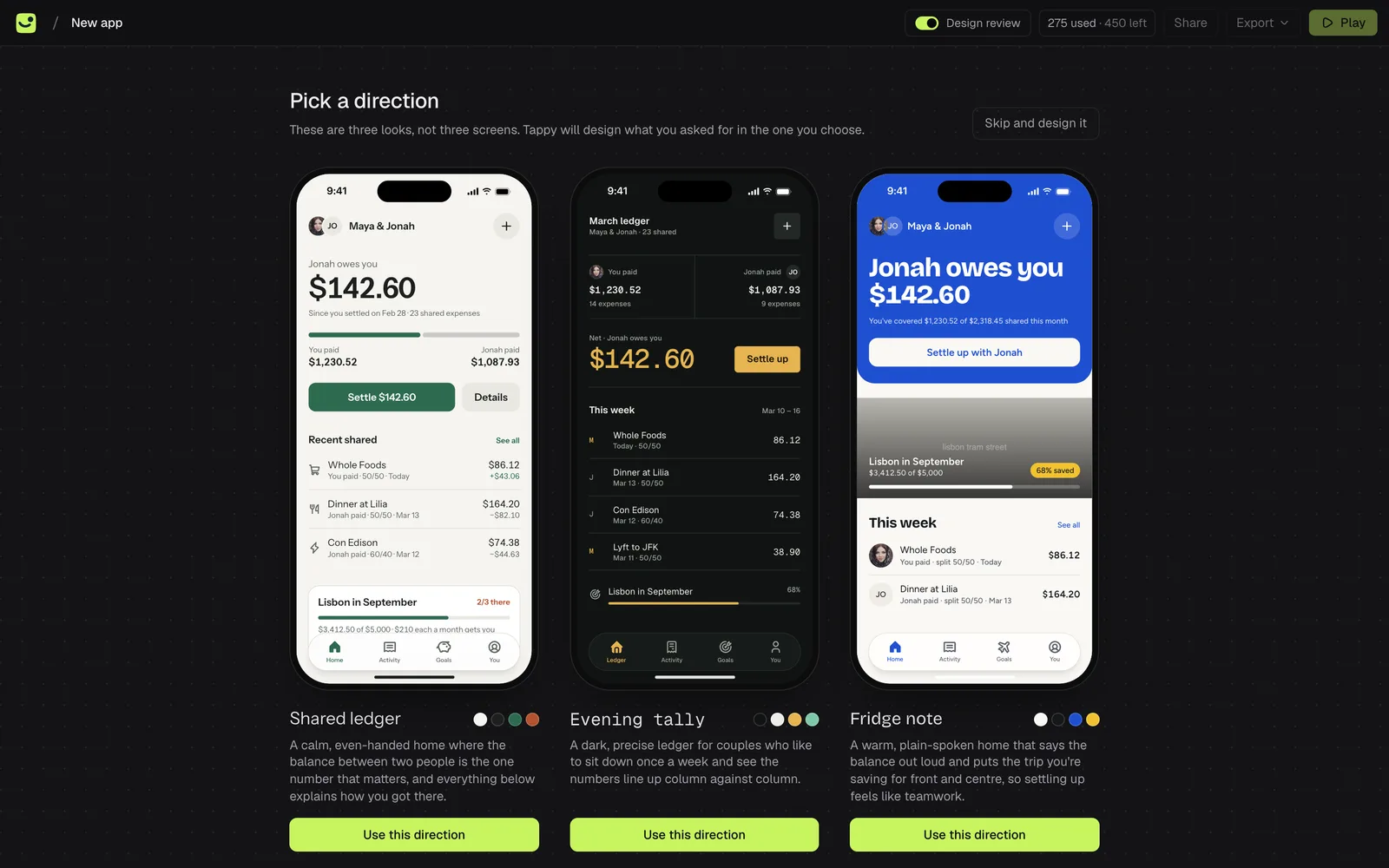
On a paid plan, Tappy first sketches three directions: three looks for the same app, not three screens. Click the one you like, or Use this direction. You can also press Skip and design it.
Watch the screens arrive
Tappy plans the app, then designs the first screen and the rest a few at a time. Each screen shows what it's doing, such as Designing… or Design review…. Keep the page open until they're done.
Look around, then make it yours
Your screens open on the design screen. From here you can change a screen, edit text and photos, try the flow and share it.